Show the overlay in the game
With a trainer attached, press Show overlay on the trainer page. A panel with your cheats appears inside the game.
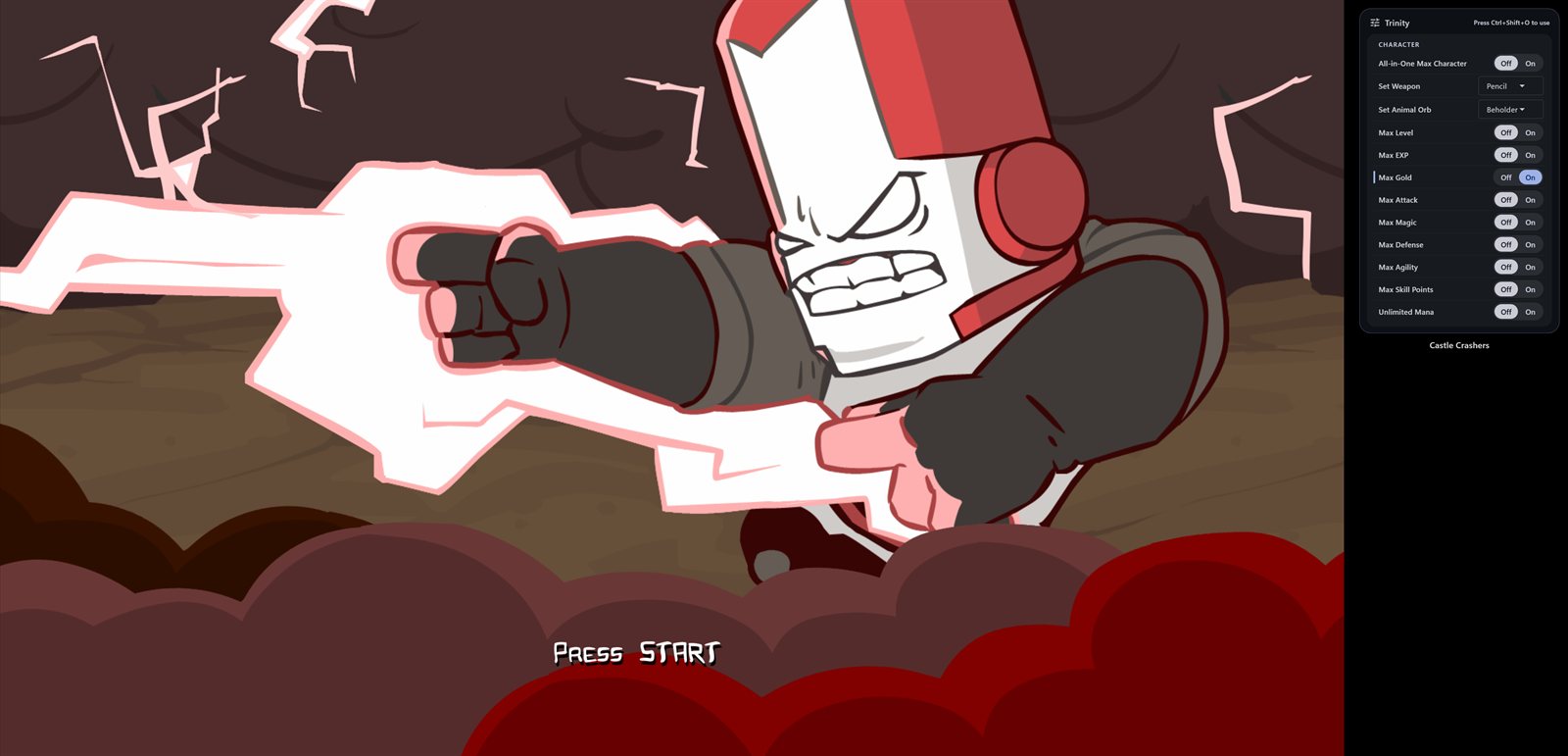
Press Ctrl + Shift + O to use it with the mouse. Press it again, or Esc, to go back to the game.
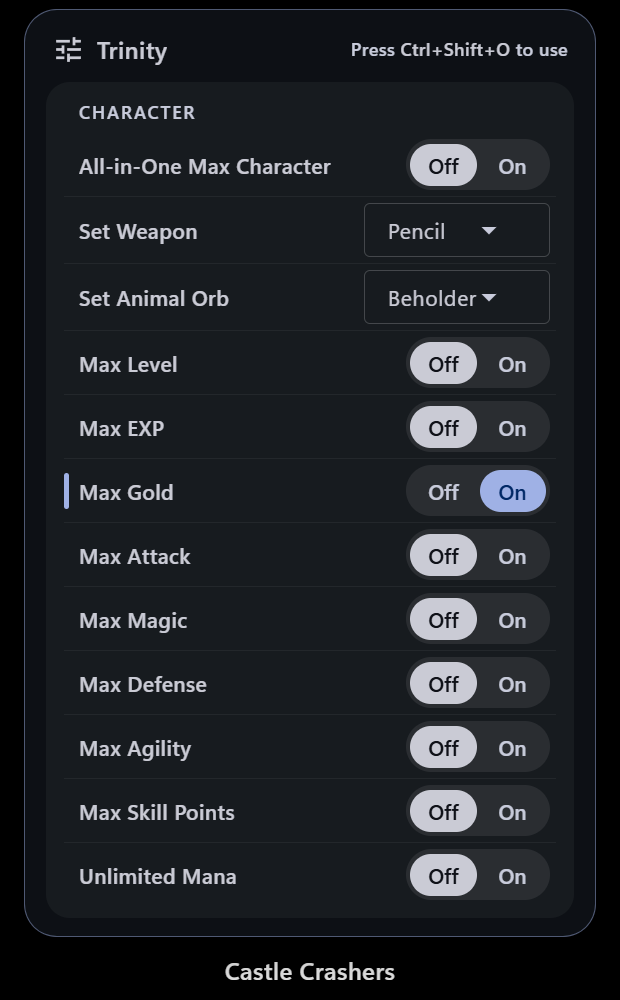
The chips next to a cheat's name (On overlay) choose which cheats the panel shows. Click one to add or remove that cheat.
Move and size the overlay
Press Overlay settings on the trainer page to pick the corner, the distance from it, the width, size and opacity, and how much to dim the game behind the panel while you use it. The preview on the right shows the result.
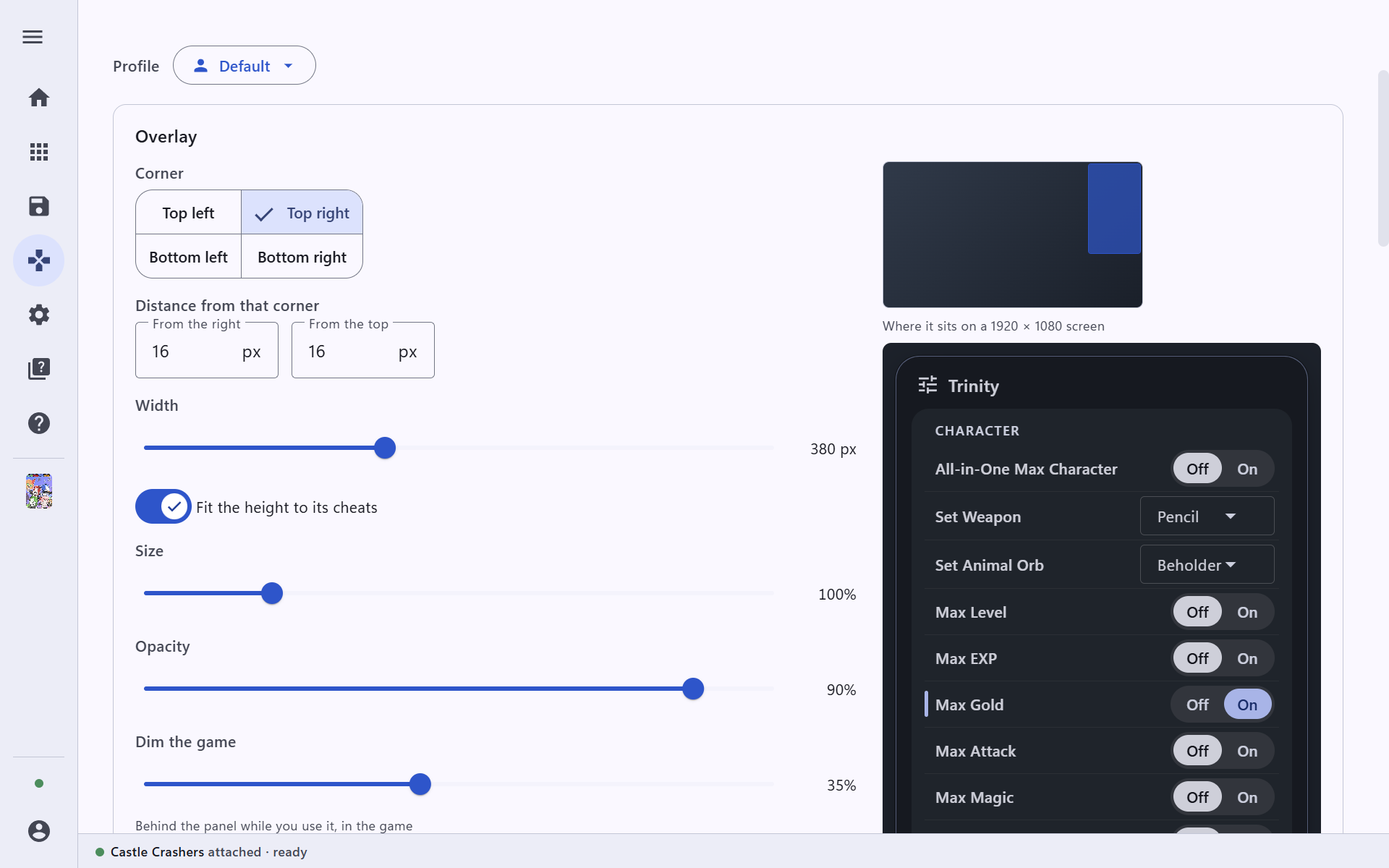
The defaults for every game are in Settings → Overlay, including Show the overlay when a trainer attaches and a fallback window for games that cannot show it.
Back up your saves
Open Game saves in the left bar, or Saves and backups on a game's page. Trinity shows where the game keeps its saves on this PC.
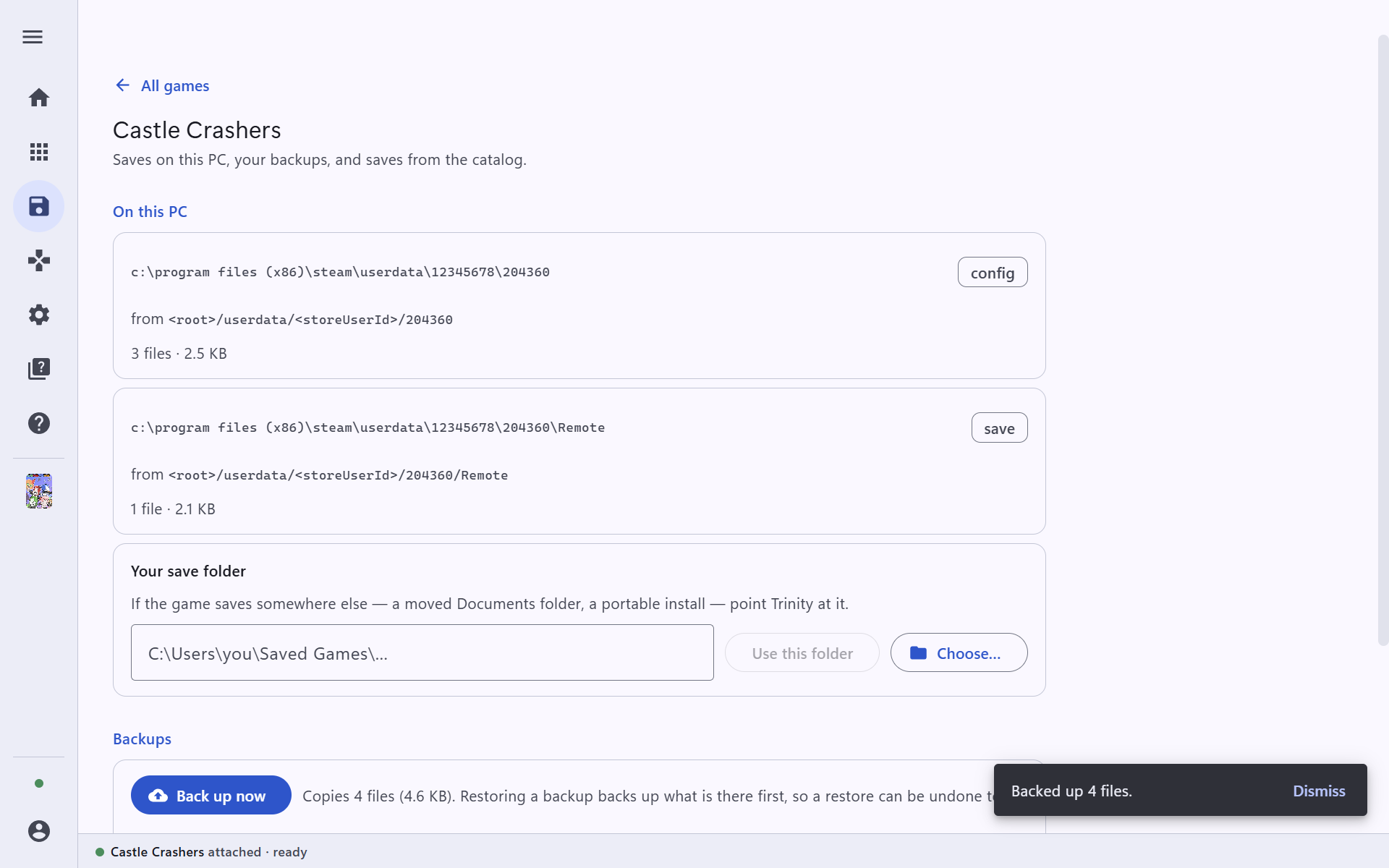
- Back up now copies the saves. Do this before you try a cheat that changes your progress.
- Restore puts a backup back. Trinity backs up what is there first, so a restore can be undone too.
- If the game keeps its saves somewhere else, point Trinity at the folder under Your save folder.
- From the save catalog lists saves the Trinity team has checked, ready to install.
Settings → Saves and backups sets the backup folder and how many backups to keep for each game (10 by default).
Make Trinity yours
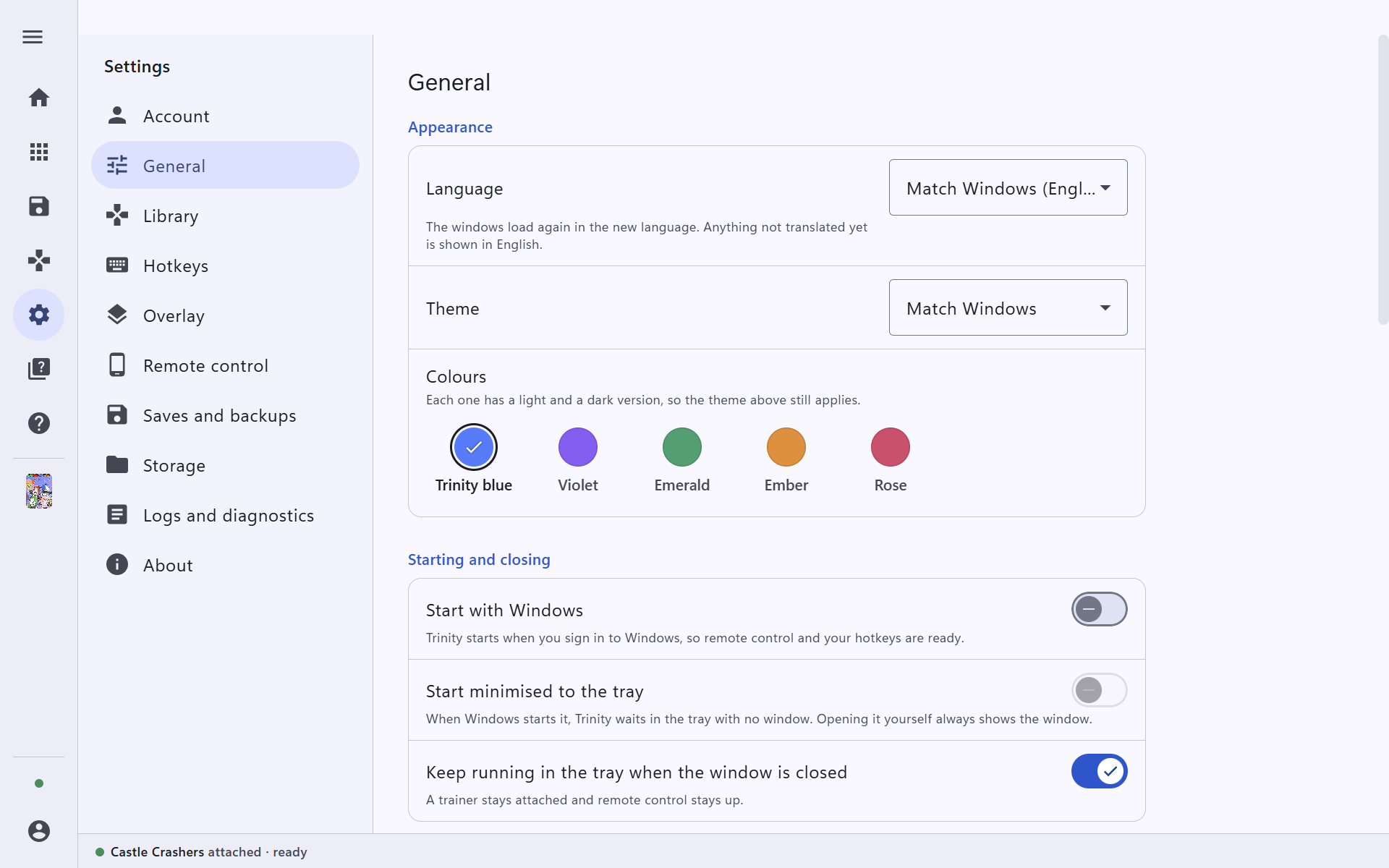
Settings → General holds the language, light or dark theme, five colour choices, and whether Trinity starts with Windows and keeps running in the tray, so hotkeys and the remote are always ready.
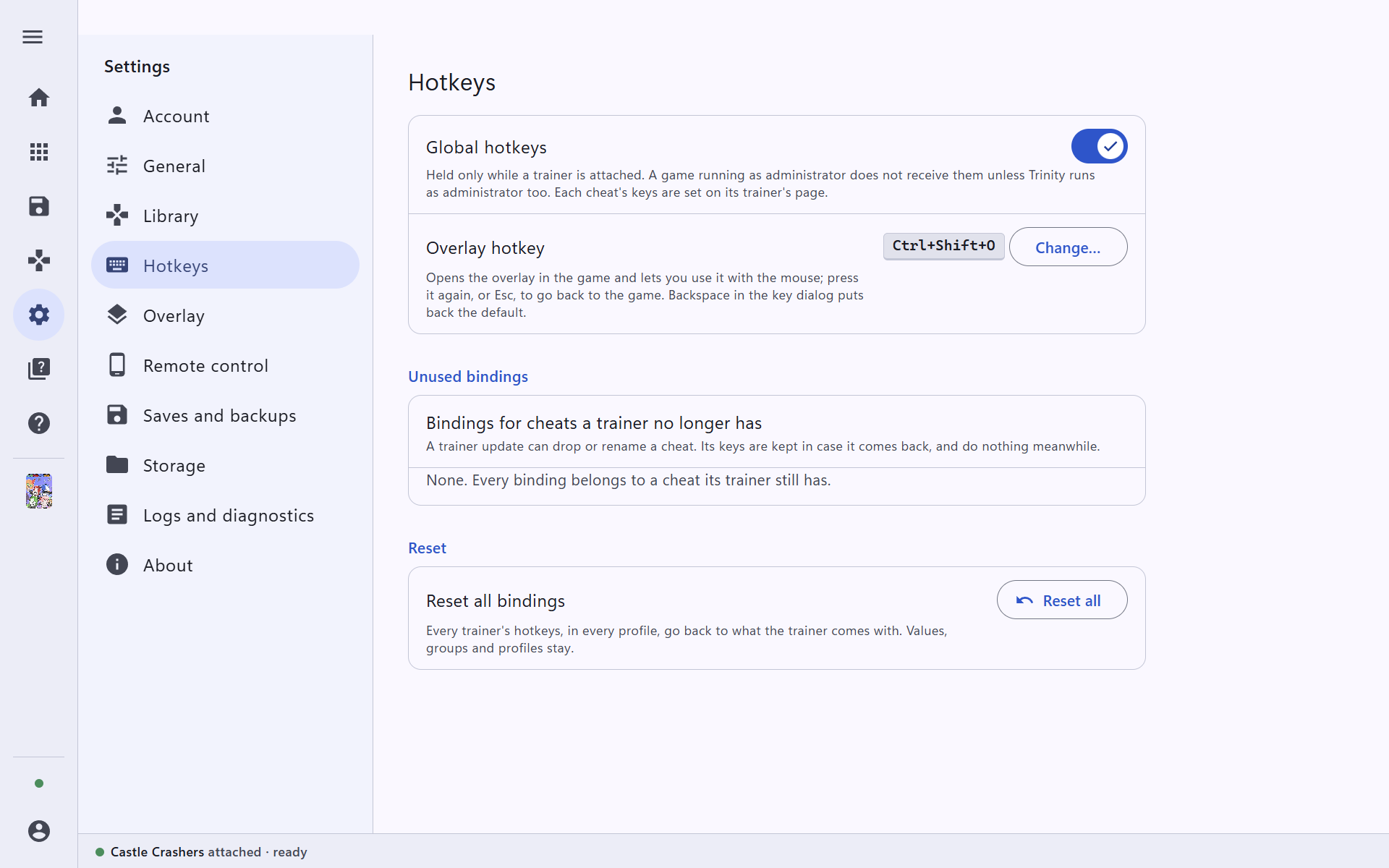
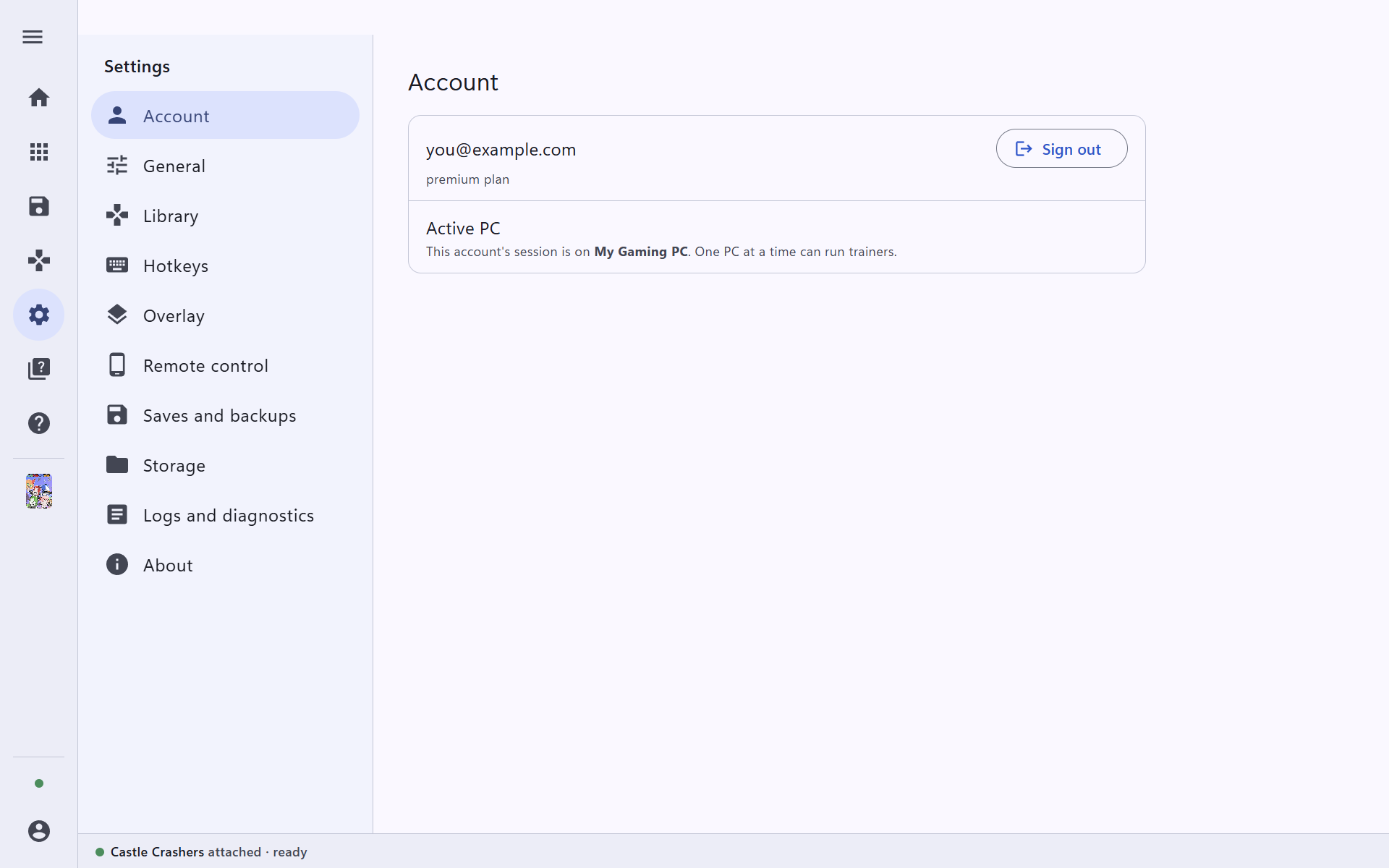
Settings → Hotkeys changes the overlay hotkey and tidies up hotkeys left from older trainer versions. Settings → Account shows the account you are signed in with and the PC that is running trainers: one PC at a time can.