Turn on remote control on the PC
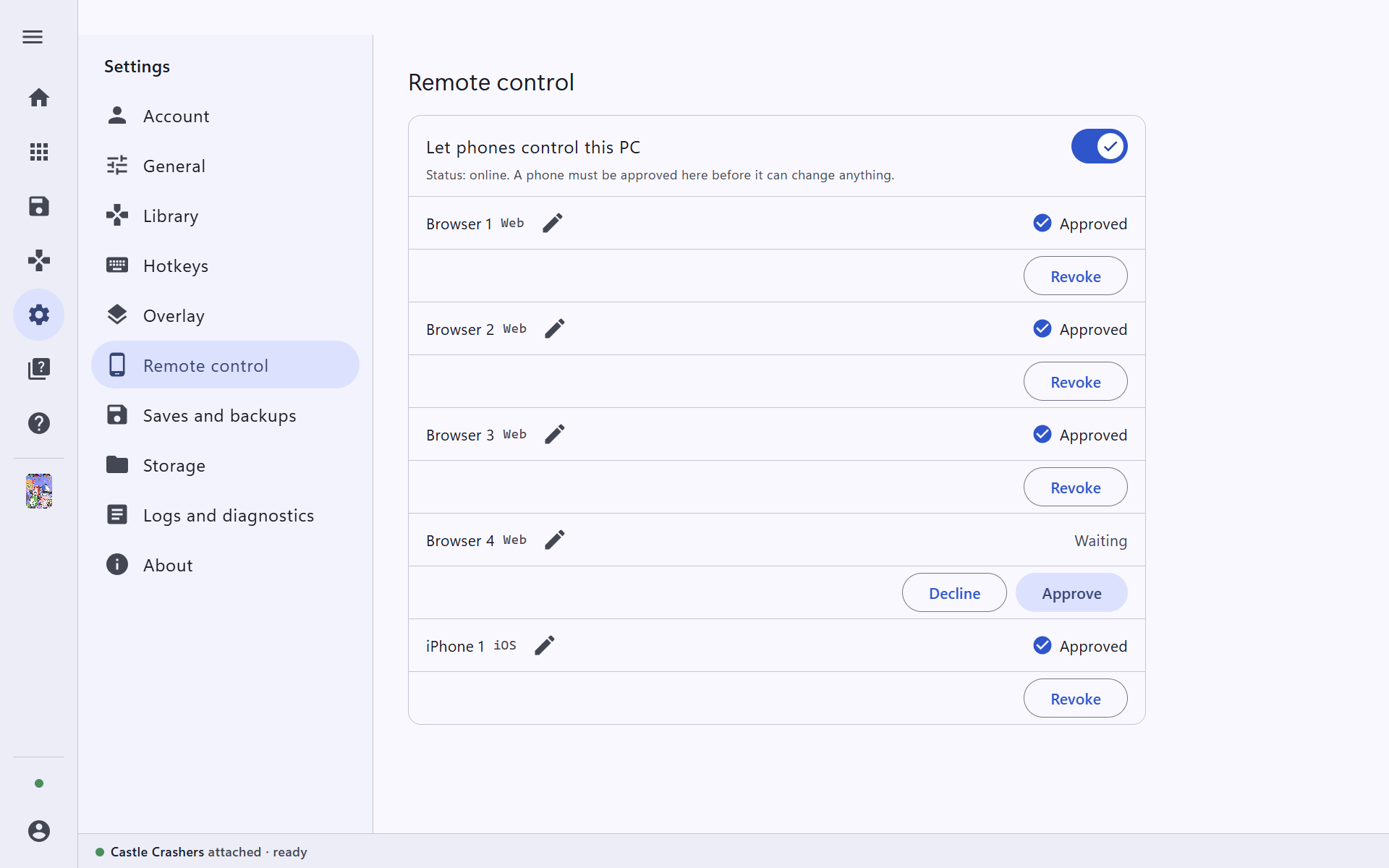
In Trinity, open Settings → Remote control and turn on Let phones control this PC. The status should say online.
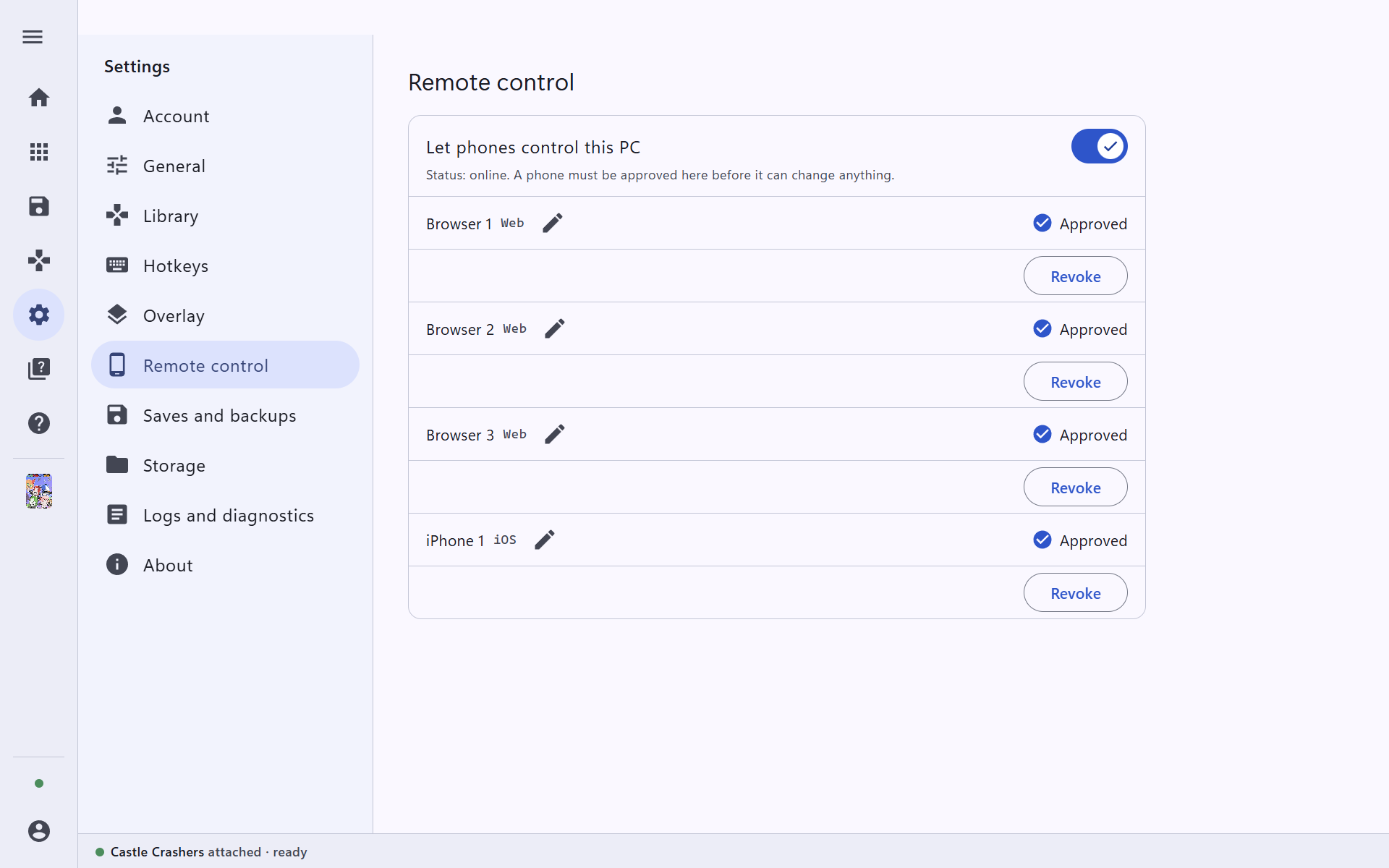
No phone can change anything until you approve it here, and you can revoke it at any time.
Open Trinity Remote on your phone and sign in
On your phone, open remote.trinitymods.com. Sign in with the same account you use on the PC.
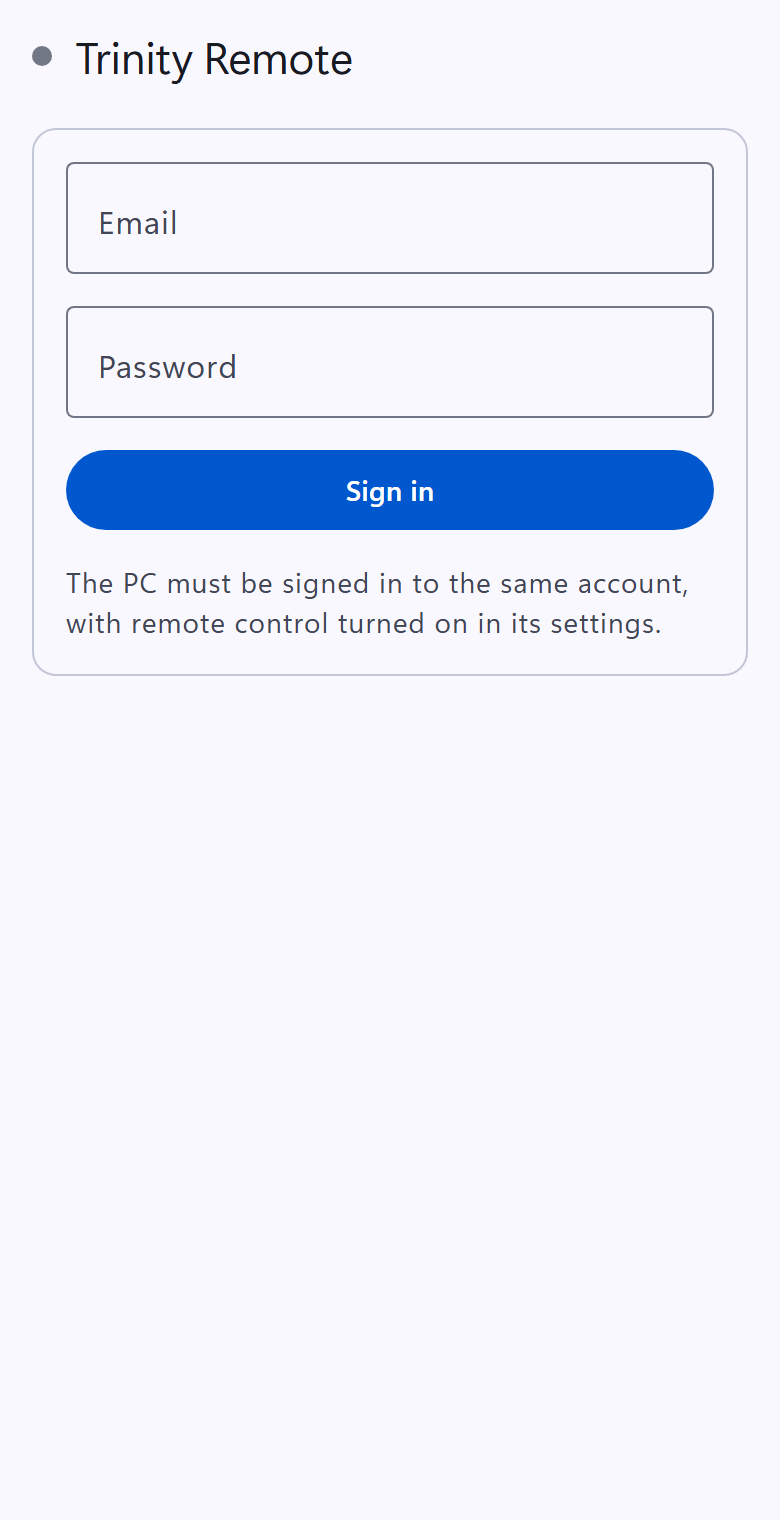
Use your browser’s Add to Home Screen to keep Trinity Remote on your phone like an app.
Ask the PC to pair
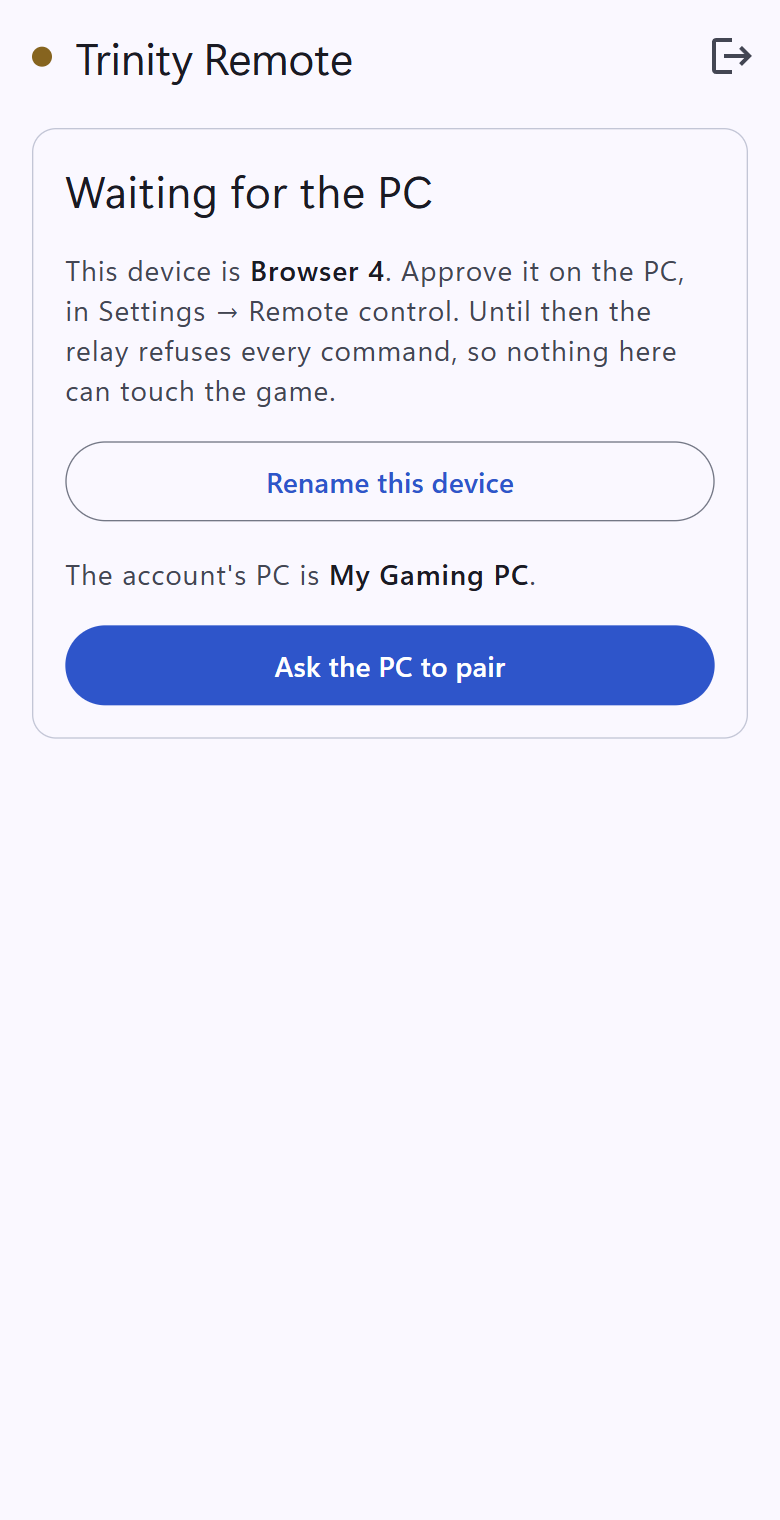
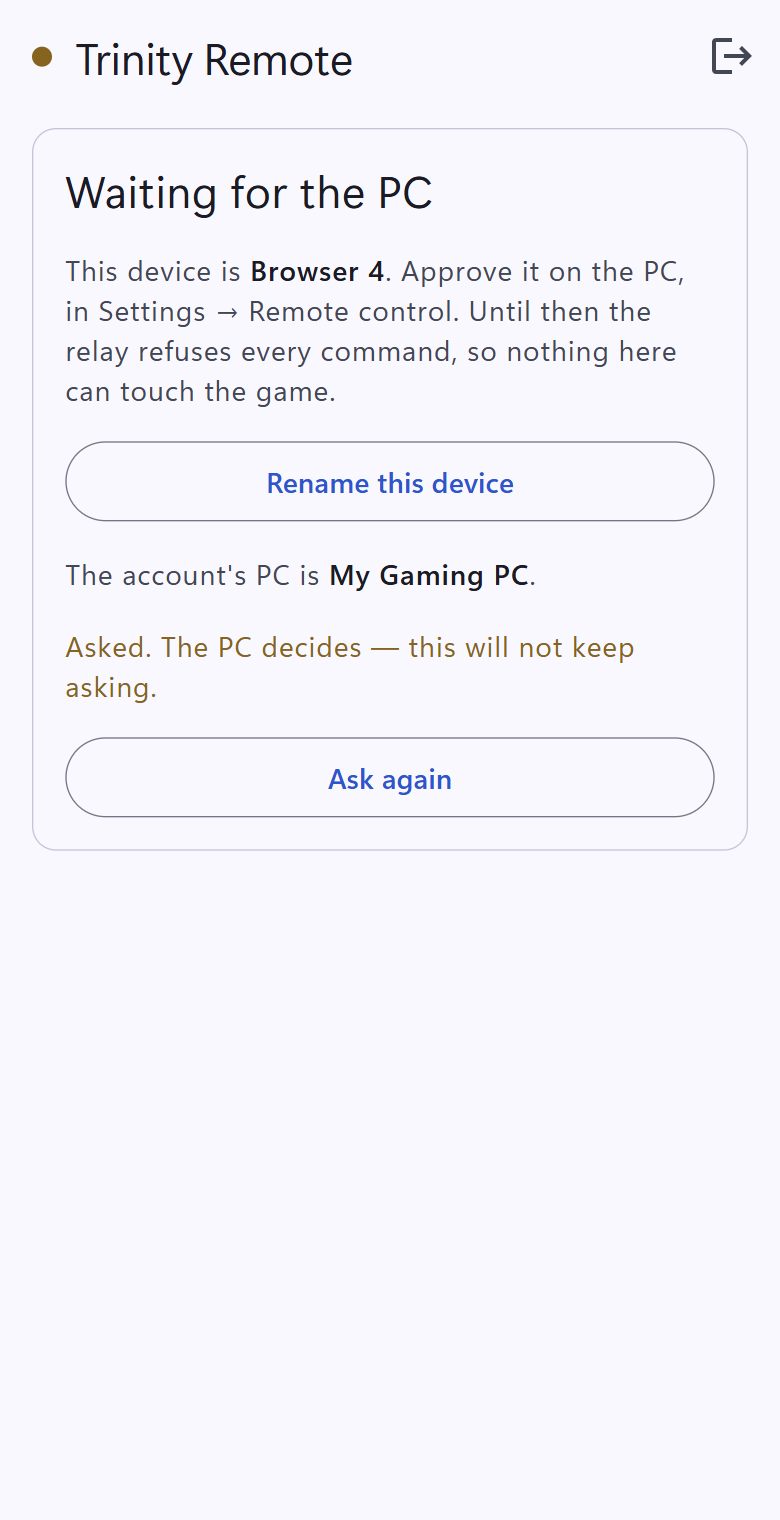
The remote says Waiting for the PC and shows your PC's name. Press Ask the PC to pair. You can press Rename this device first to give your phone a name you will recognise.
Approve the phone on the PC
Back on the PC, the phone appears in Settings → Remote control as Waiting. Press Approve. (Decline turns it away.)
Use your phone as a remote
The phone now shows your PC as connected, the game that is attached, and every cheat with the same switches and values as the app. Flip one and it changes in the game, and in the app on the PC.
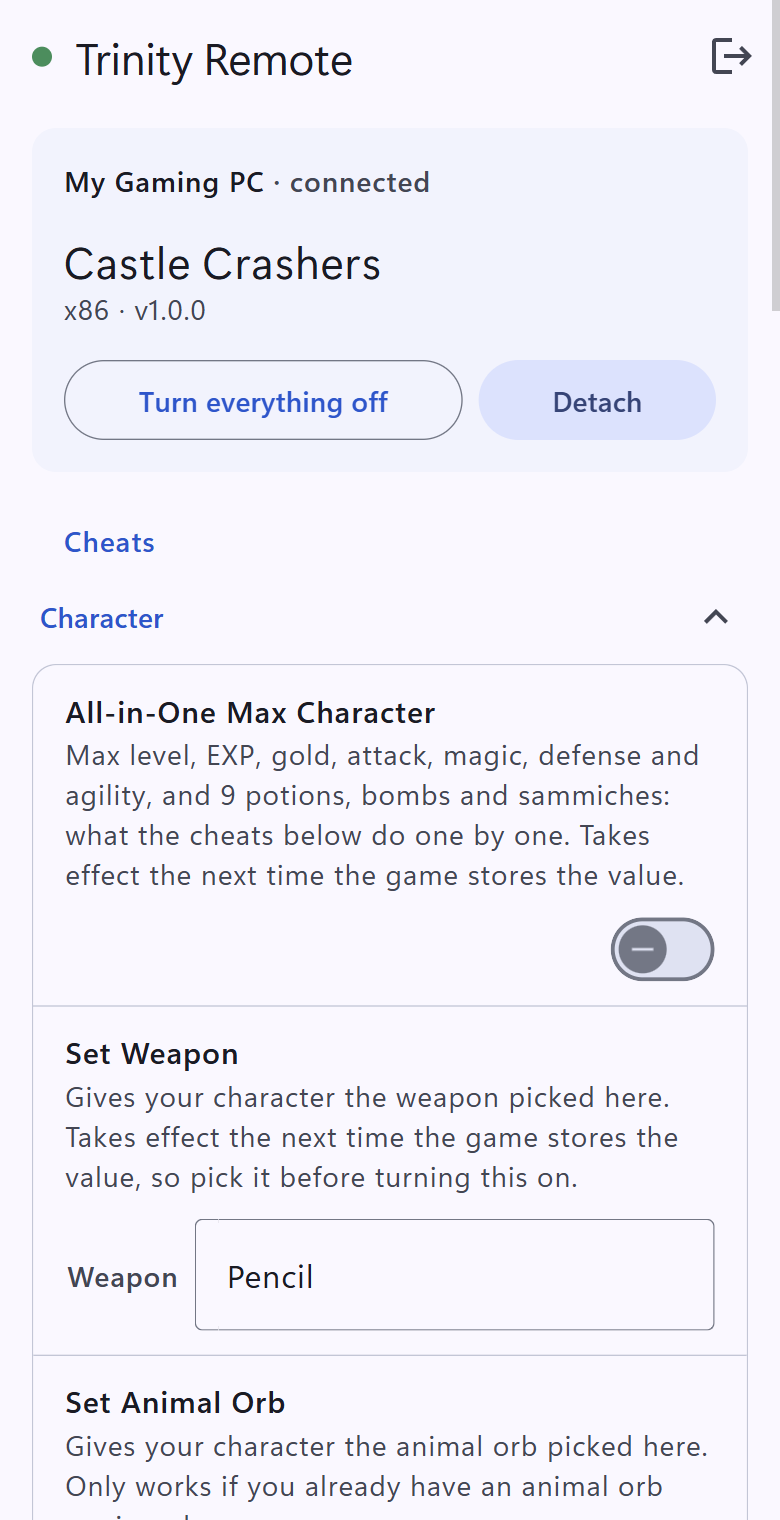
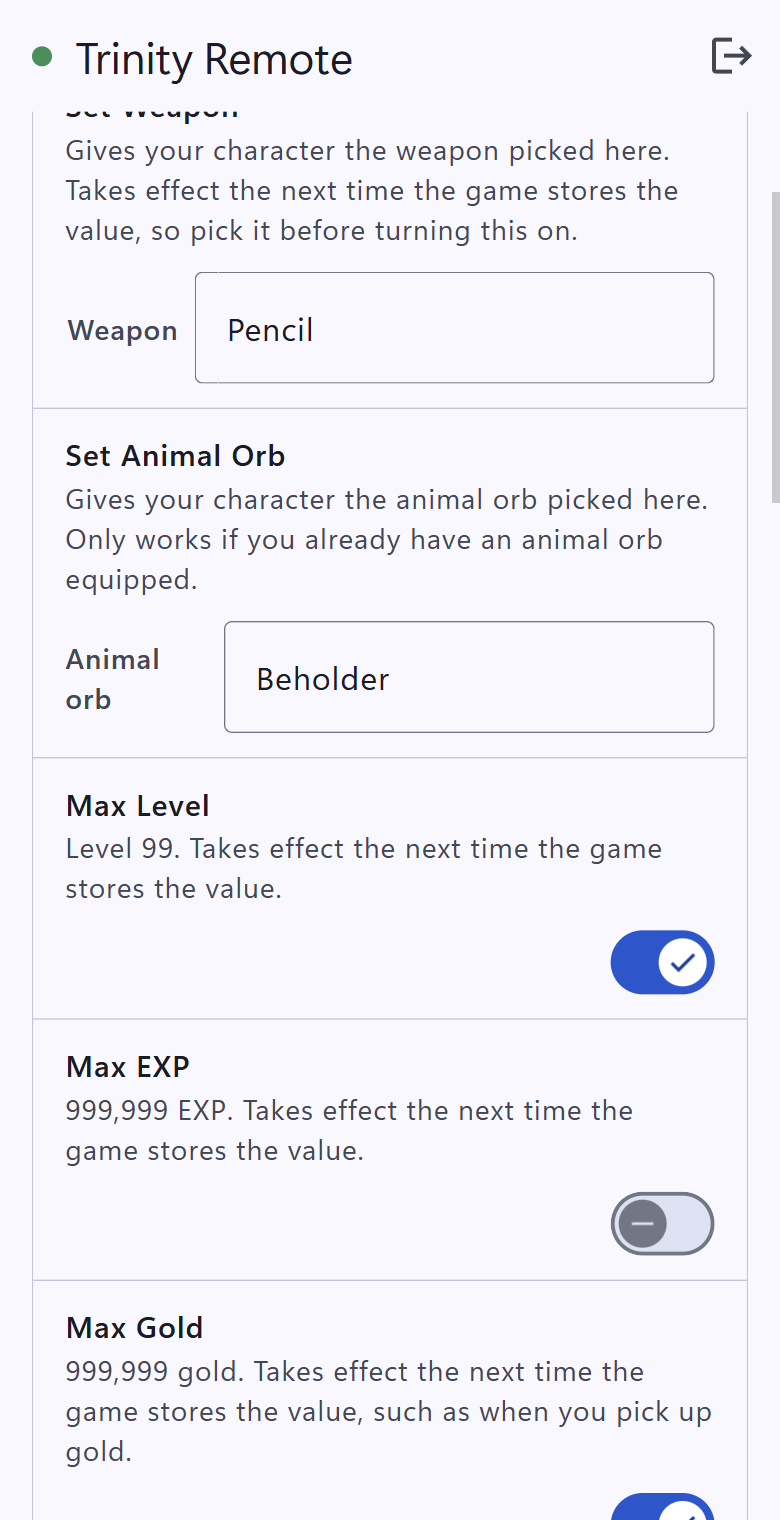
- Turn everything off and Detach work as they do on the PC.
- When nothing is attached, the remote lists your favourite games: press Play to start one on the PC.
- To stop a phone, press Revoke next to it in Settings → Remote control.