Find a game without a trainer
Open Library and press Request a Trainer next to the number of trainers. You can start a request from three places:
- The Library. The Request a Trainer button is always at the top of the Library.
- Installed games. In Library → Installed, scroll to the end of the list. Games on your PC that have no trainer yet are under On This PC, No Trainer Yet, each with its own request button.
- The Requests page. Open Requests in the menu on the left and press Request a Trainer.
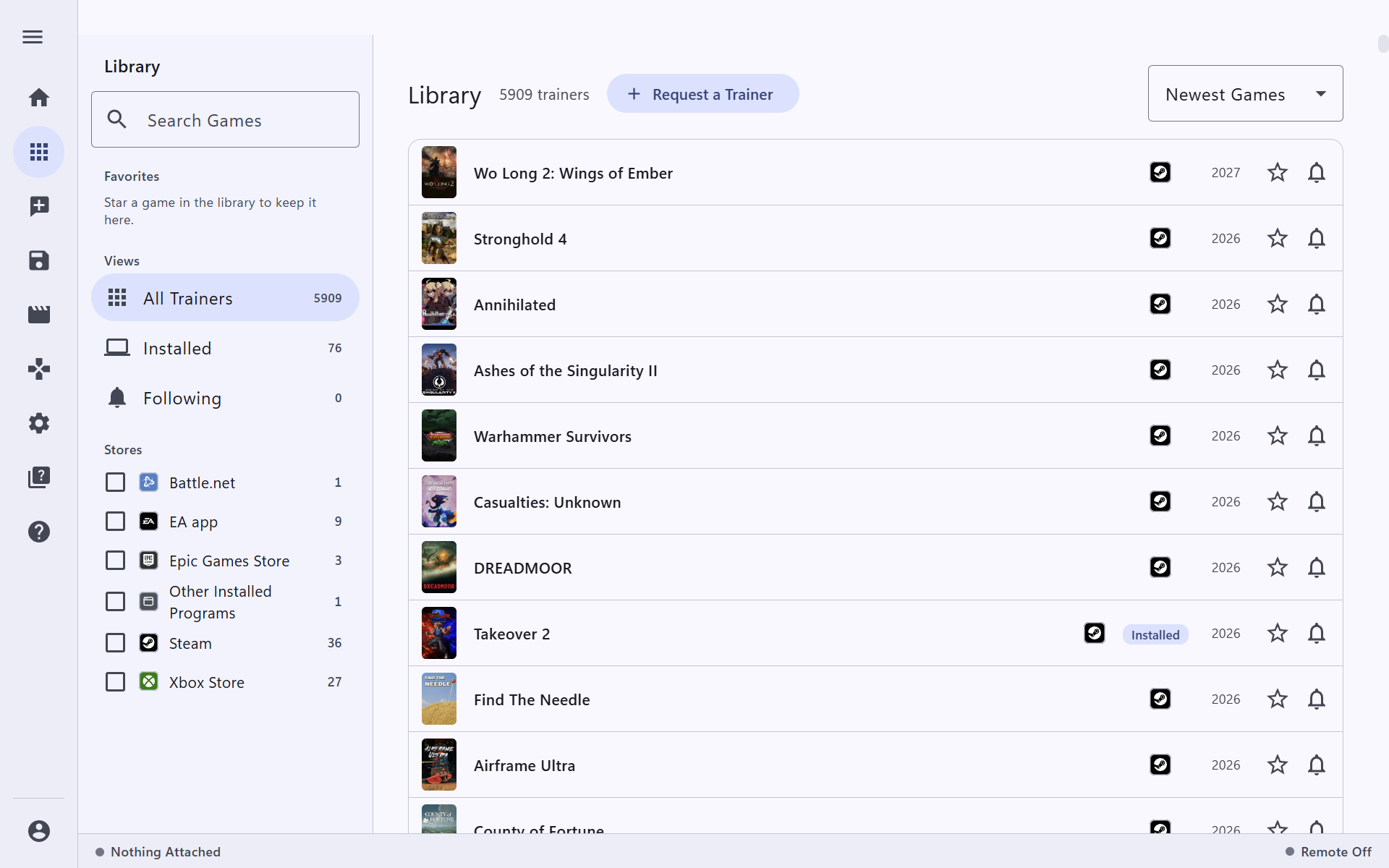
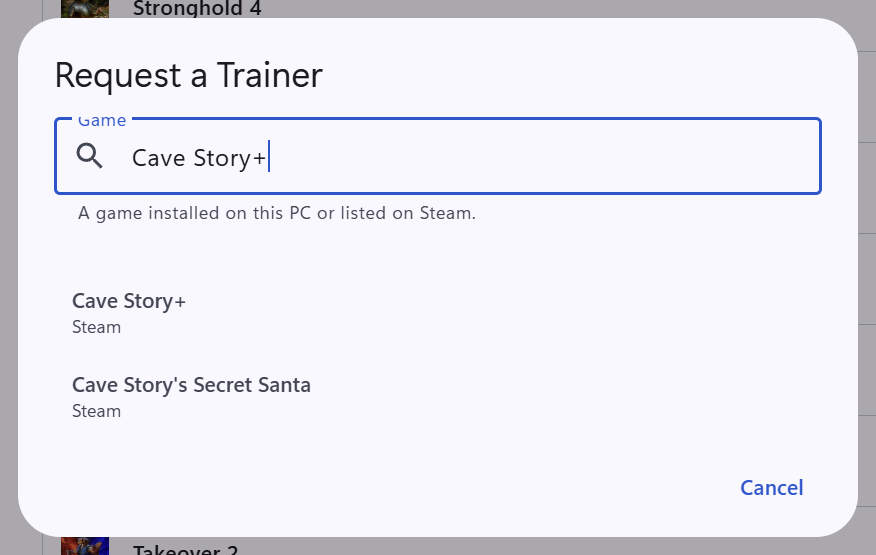
You can ask for any game installed on your PC or listed on Steam. Trinity doesn't take a game typed in by hand: if it isn't in either place, it says We can't find that game. If the game already has a trainer, the search links you to it instead.
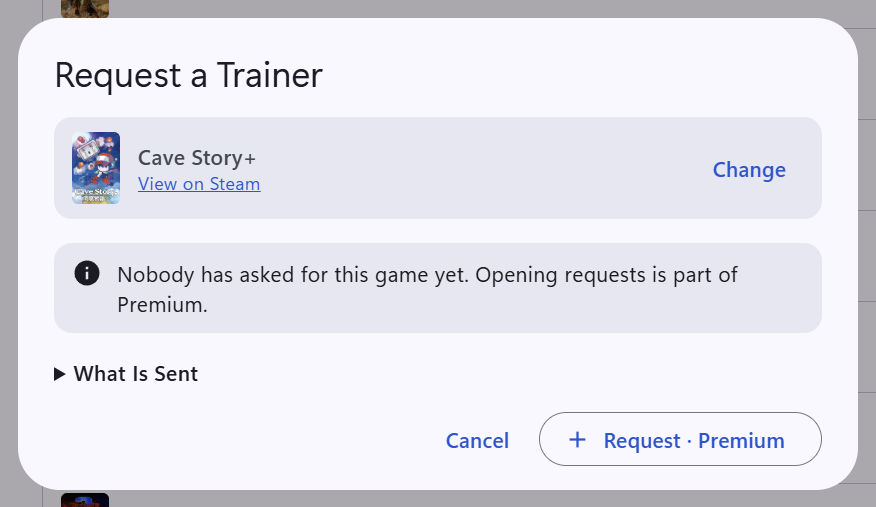
Opening a new request is part of Premium. Without Premium, the button reads Request · Premium and tells you so, and you can still follow any request.
Send your request
In the Request a Trainer window, type the game's name and pick it from the list.
Then tell the developers what you want:
- The cheats you want. Tap the ones you'd like: Infinite Health, Infinite Ammo, Money, Items, No Cooldowns, Speed, Teleport, God Mode or Unlock All. Other… lets you describe a cheat of your own.
- A note for the developers, up to 500 characters. Only Trinity's developers read it.
- When it ships. Tell Me notifies you when the trainer is ready, Follow the Trainer for Updates keeps you posted afterwards, and you can also add the game to your favorites.
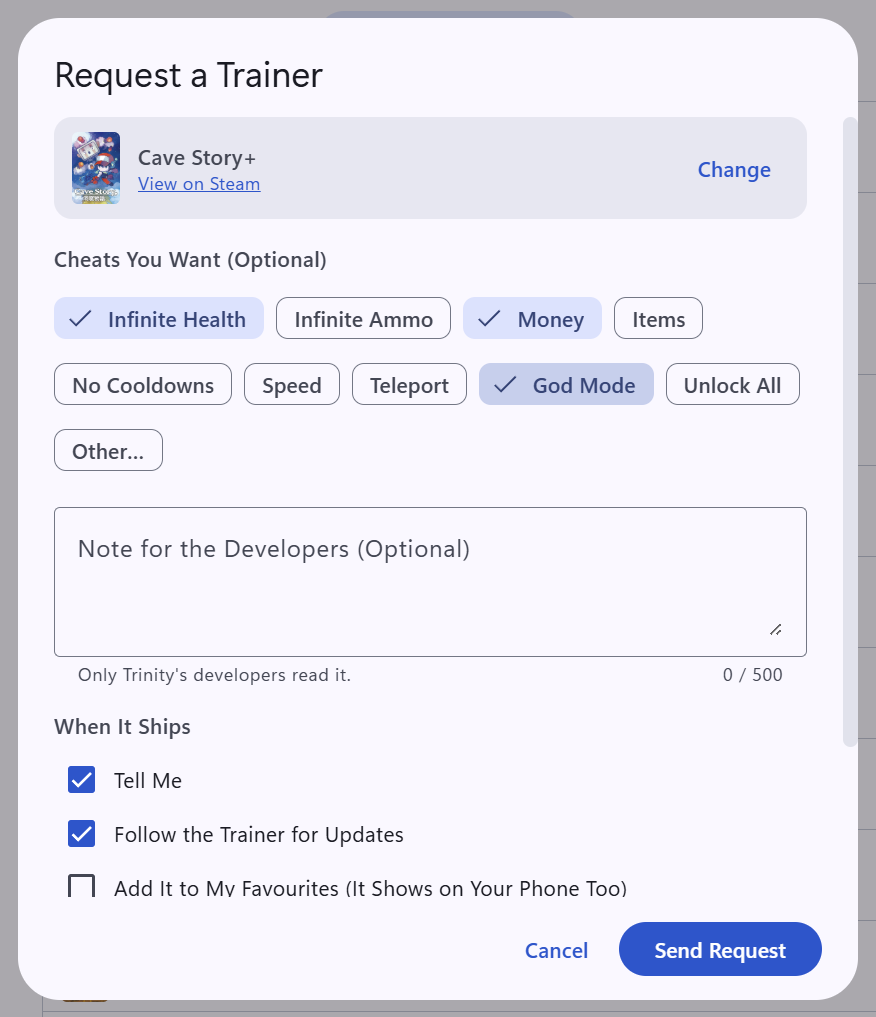
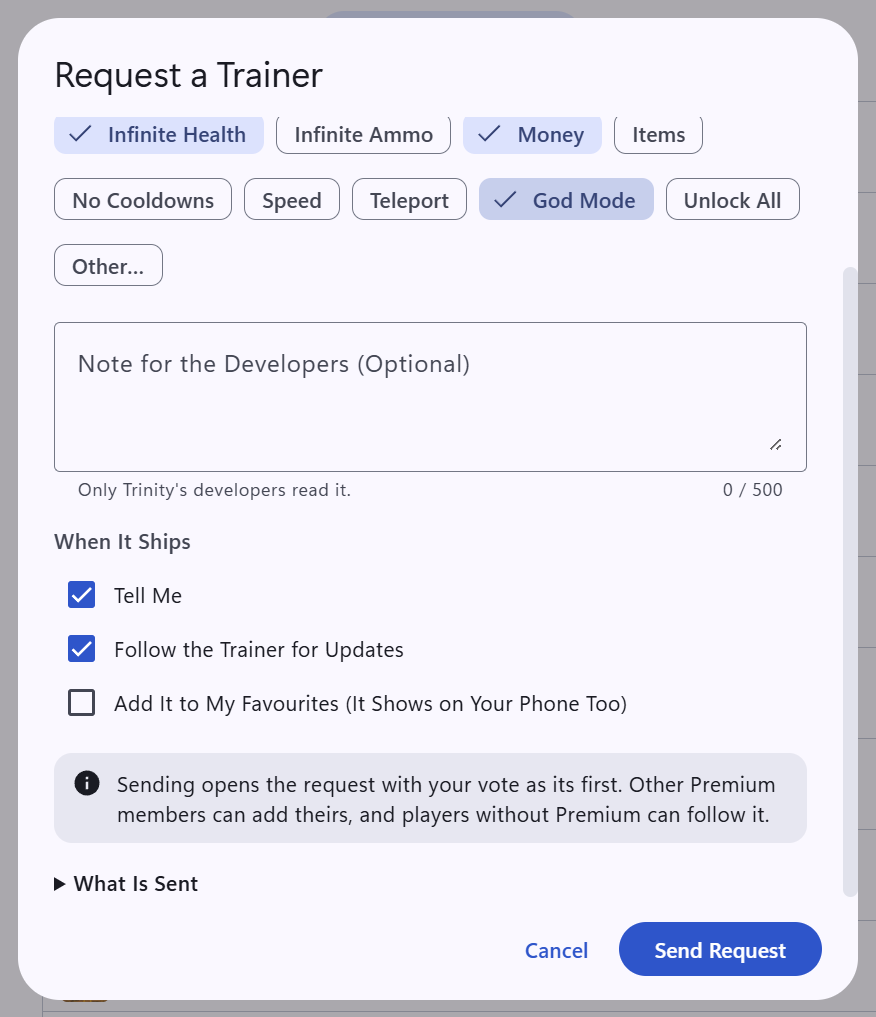
Press Send Request. Sending opens the request with your vote as its first. If the game already has a request, the window shows it with Vote or Follow instead of starting a second one.
Open What Is Sent to see exactly what goes to Trinity: your account, so your vote counts once; the cheats you picked and your note; and the game's store and id. It never includes your install folder, your Windows user name, other games or anything from the game's memory. If the game ships with an anti-cheat, the window tells you, and you can still send it.
You can have up to 10 open requests at a time. When one is released or declined, you can open another. If you send a lot of requests within an hour, Trinity asks you to try again later.
Vote for or follow a request
The Requests page has three tabs:
- Most Wanted: requests sorted by votes, so developers see what players want most.
- New: the latest requests.
- Mine: every request you opened, voted for or follow, with its status.
You can search any tab. Each row shows the game, its status and its votes.
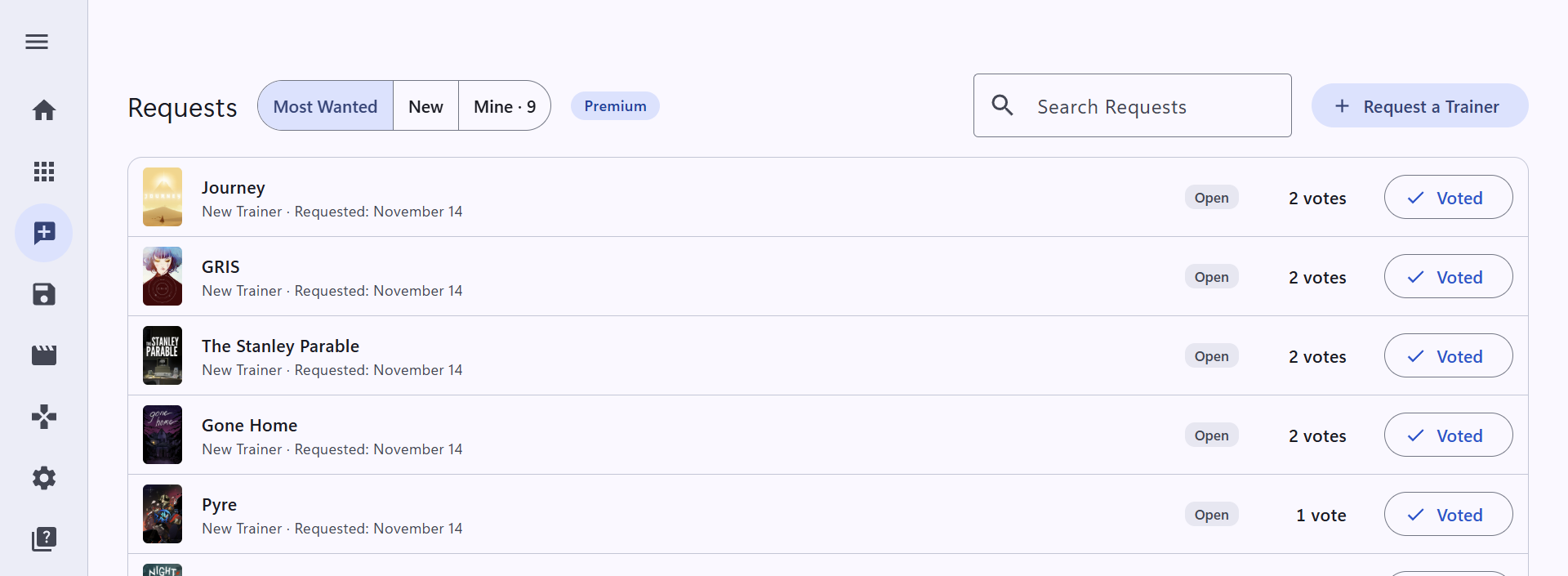
- Vote adds your vote, and also follows the request. Only Premium votes count towards the order.
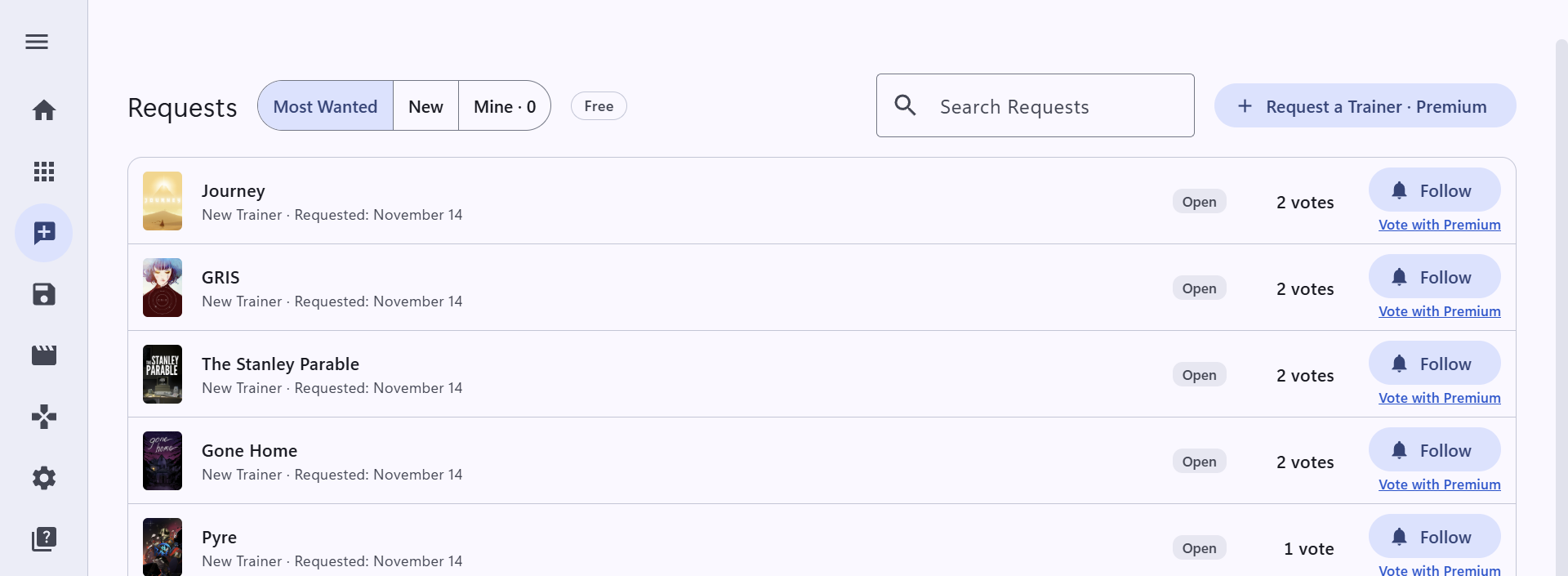
- Follow tells you when the request changes without adding a vote. This is what you see without Premium, next to a Vote with Premium link.
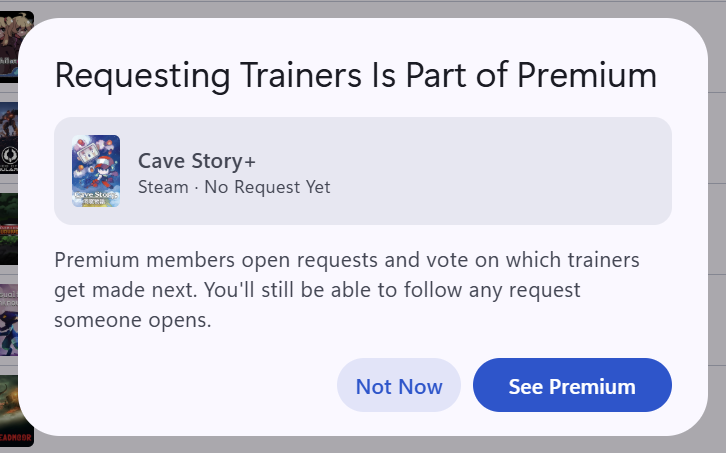
Without Premium, Request · Premium opens a short window that says requesting trainers is part of Premium and that you can still follow any request someone opens.
Ask for an update
If a game patch breaks a trainer, the trainer's page says Some cheats were not found in this build of the game and the broken cheats are greyed out. Press Ask for an Update for This Build. This is open to every signed-in account, Premium or not.
The Ask for an Update window shows the trainer and the game's build. If nobody has asked for an update for that build yet, yours starts at 0 votes, and Premium members can vote for it. If the build already has a request, you can vote for or follow it, and Voted · Send This Build or Following · Send This Build adds your build to it.
As with a new trainer, you can add a note and choose Tell Me When It's Fixed and Follow the Trainer for Updates. What Is Sent lists what goes with it: the trainer and its version, the game's executable name, build information, and which cheats were not found.
Hear when it's ready
When a request you opened, voted for or follow changes status, Trinity shows a notice in the app. When the trainer is released, the notice has an Open the Trainer button, and the request shows Get the Trainer under Mine. If you chose to follow the trainer when you sent the request, you'll also hear about its later updates.
You can also follow any trainer with the bell next to its star in the Library. Following is separate from favorites: the star keeps a trainer on your phone, the bell tells you about updates.